WordPress has a media uploader, which many people believe has a lot of room for improvement. There are many things that you can’t do when uploading and displaying images on a WordPress powered website. Uploading and displaying images can be made much better by using some built in functions and additional plugins. In this post we will look at some functions, code snippets and plugins to improve the display and management of image files in WordPress.
Controlling The Image Sizes in WordPress
When you upload an image to your website, WordPress automatically creates additional sizes for your image. You can set the sizes of these images in Settings -> Media as shown below:
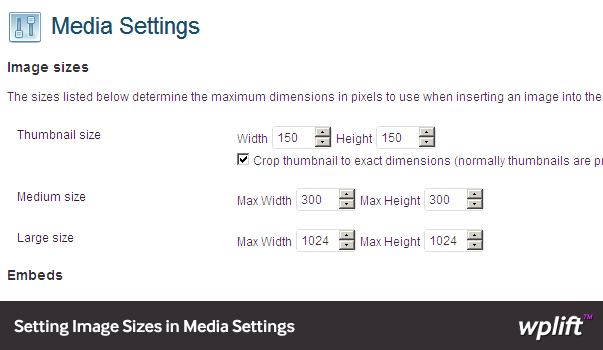
In these options you can also choose to proportionally crop your images with same dimensions instead of allowing WordPress to crop images for you.
Post Thumbnail size settings can be overridden inside your theme’s functions.php file as well. Doing so, changing the thumbnail size in Settings -> Media will have no effect on how WordPress displays post thumbnails. This option is particularly useful for theme developers.
if ( function_exists( 'add_theme_support' ) ) {

add_theme_support( 'post-thumbnails' );

set_post_thumbnail_size( 150, 150 );

}
In the above code, we have set the post thumbnail size to 150X150px. Set Post Thumbnail size is a useful little function. It comes with three arguments like this:
< ?php set_post_thumbnail_size( $width, $height, $crop ); ?>
$crop here tells WordPress whether it should crop an image or not, default is false and setting it true will allow WordPress to crop an image.
Choosing Different Thumbnail Sizes for Different Templates
Sometimes you might want to have smaller thumbnails on your main pages and slightly larger thumbnails on archive, category, or single post templates. You can set these image sizes using the function add_image_size()
if ( function_exists( 'add_image_size' ) ) {

	add_image_size( 'tag-thumb', 200,200 );

	add_image_size( 'homepage-thumb', 220, 180 );

	 }
To display these thumbnail sizes you will have to add a little code to your template files. In the example above we have created two thumbnail sizes, one for Tags template and one for homepage template. To display the tag thumbnail we add the following code in our tags.php template.
< ?php
if ( has_post_thumbnail() ) {
the_post_thumbnail( 'category-thumb' );
} ?>
Cropping Images in WordPress
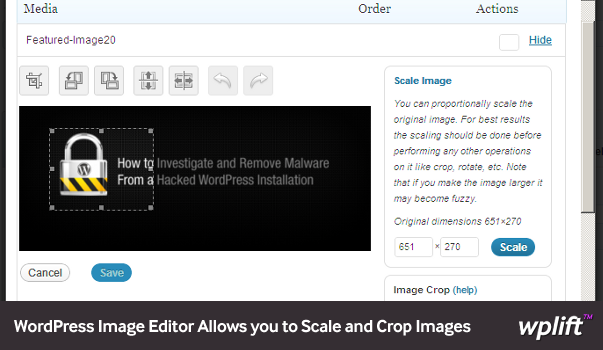
WordPress has a built in Image Editor which you can use to crop, scale and flip your images. There are two ways to access the image editor. When uploading an image from post edit page, after the upload go to gallery and click on the image you want to edit and then click on Edit Image button.
Alternately you can go to Media, upload your image, if you have already uploaded your image click on the Edit link. This image editor is a very basic but handy tool to quickly resize your images.
Stopping WordPress from Creating Multiple copies of Images
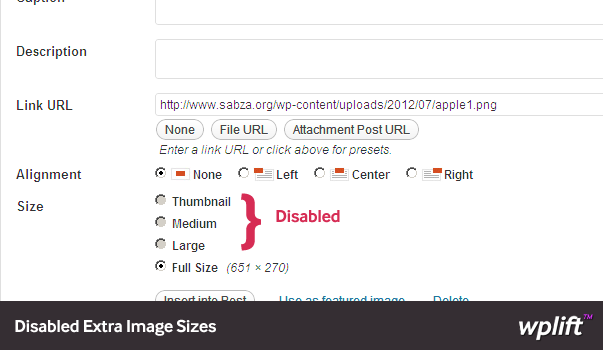
It is quite useful that WordPress creates different sizes for your images. You can show a medium sized image inside post, a thumbnail on main and archive pages and full size images when someone clicks on them. However, some people may not want all these images, some people would like to have just the original image. They might have already edited the image in the size the like and want to display it only in that size, or they simply don’t want other sizes. Or they have created a custom image size for their templates and want to use those sizes and nothing else.
There are two ways to do that, first one is simpler, go to Settings -> Media and set all image sizes to 0.
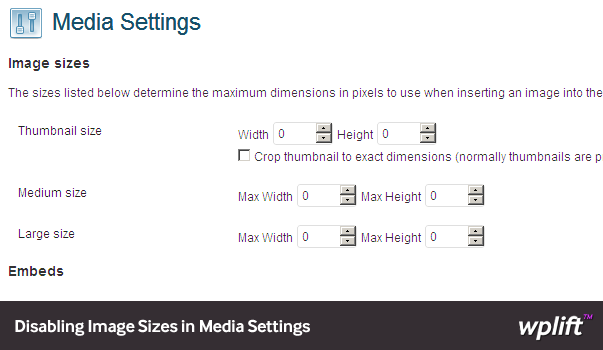
The second method is to add the following code in your theme’s functions.php
function wplift_remove_image_sizes( $sizes) {

        unset( $sizes['thumbnail']);

        unset( $sizes['medium']);

        unset( $sizes['large']);
return $sizes;
}
add_filter('intermediate_image_sizes_advanced', 'wplift_remove_image_sizes');
Creating Image Galleries With Nifty Zoom in
If you upload multiple images to a post, there is a gallery feature in your Media Uploader screen which you can use to create instant image galleries inside your post or pages. When some clicks on the image they are taken to attachment page where the image is displayed. Now the problem is that this is slower and takes user away from the actual post. What we would like to do is that user can view the images right there without leaving the page.
NextGen Image Gallery Plugin
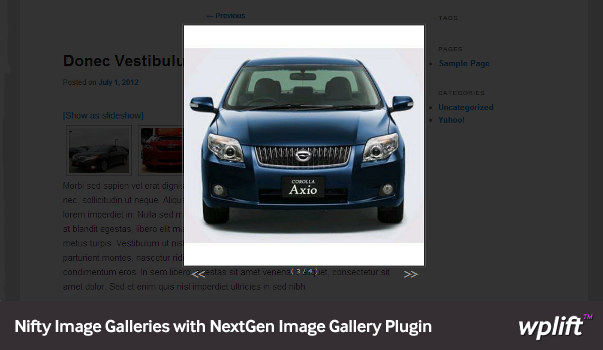
NextGen Image gallery plugin is one of the most popular WordPress image gallery plugins around. It allows you to do various things with your images. You can create galleries, tag images, display slideshows, nifty javascript based image zoom in, watermark your images and even add effects to your images. In the past we have added a nice tutorial about how to use NextGen plugin to create image galleries on your site.
There are many more nice and premium plugins which allow you to display your images, some of them are:
- Dynamic Content Gallery Plugin
- Lightbox Gallery
- Grand FIAGallery
- LightBox Evolution [Premium Plugin]
Conclusion
WordPress is popular because it is easy to extend. Every aspect of your WordPress can be extended to have additional functionality with the help of these awesome plugins. In case of displaying media particularly images, there are some awesome free and premium plugins that can provide you with any extra functionality you can think of. Play around a little, and if a picture is worth a thousand words make sure those thousand words are used effectively.
wordpress, wordpress image handling, wordpress hack image quality upload full size, i want to display a medium image size on archive category that links to the original post, wordpress image guide, wordpress edit multiple picture size, wordpress image as post, wordpress image editor function, wordpress image functions, wordpress image gallery
Related articles: