 All about WordPress
Doing “hello world”, now for your Android phone or mobile device - Back in the first days of mobile application development, it used to be reserved for only certain company-approved developers, on the framework of the specific phone. Back then, there were no publically accessible resources, no way to make your own application for your particular needs. But with the growth of the capabilities of the phones, we can safely say that a new era has dawned for mobile software development. And though there are many platforms and operating systems to develop for, Android seems to be the best choice for a free, easy and hassles mobile app development.
So where do we get started ? Assuming you’ve already written code for some other platform , you might be familiar with the concept of programming in general, and if you’ve had experience with Java, things get a tad bit easier, since Android uses Dalvik bytecode , a flavor of Java for its apps. Still , there are several differences due to the particular nature of Android programming, and we’d have to do some theory first , but don’t despair, we’ll get practical again in no time.
Some preliminary theoretical basics
So first let’s clear some things about Android development – it is done with the nifty basic tools provided by Google in the Android SDK , where SDK stands for Software Development Kit. It contains all the libraries and other code basics to start. But one would need an environment to use them easily, a program with a text editor, menus and sample projects. That’s where Eclipse comes in – an IDE which can give you an easy way to write your app.
Also, a good thing to remember is that Android programs comprise of Activities – think of an activity as a single screen of your app, combined with the programming function that executes related to it. Each Android program has at least one activity called the main activity. It can also have many others, depending on your needs and the functionality you might be trying to implement.
Downloading and configuring Eclipse
If you don’t have Eclipse already up and running, surprisingly that’s a benefit! You can download the ADT pack , in which ADT stands for Android Development Tools. It contains both the Android SDK and Eclipse inside of it. First off, locate the ADT in Android’s developer site, which is here. It should automatically detect your operating system to be used for development. Download it and then unpack the zip file called adt-bundle-windows.zip (if you’re using Linux, it will be adt-bundle-linux and so on). Inside the unpacked folder, launch the Eclipse executable file. That’s it, you’re ready to start.
Building your first HelloWorld application
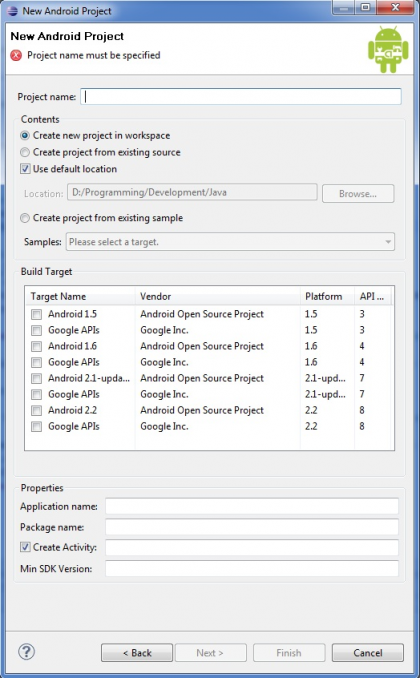
First things first – fire up Eclipse, go to File , then New, then New Project. In the screen that follows, select Android , since that is the type of application we would like to build. You’ll see a screen similar to this one :
Start by first selecting a project name. For our example , we shall use Hello World, because it would seem most descriptive of what we’re trying to accomplish. Afterwards, you need to select the API version and the version of Android we’ll be developing for – in this example 2.2 is the Android version , and the API version that corresponds to it is 8. Next of , the application name, which has to contain no whitespaces as it is used as an identifier in the code. For that, we enter “helloworld”. We need to enter a package name (a package usually groups multiple classes), we’ll call it “com.test.helloworld”. Lastly, an activity name for our main activity – HelloWorldApp.
That’s it ! No really, that’s it! But in order to see our application, we would need an Android emulator, which we can easily create through the menus of Eclipse. Go to Run, then Run Configurations. From there , select Android Application and follow the instructions to create your first emulator.
With a little tinkering, after saving the settings and clicking the run button, we get this :
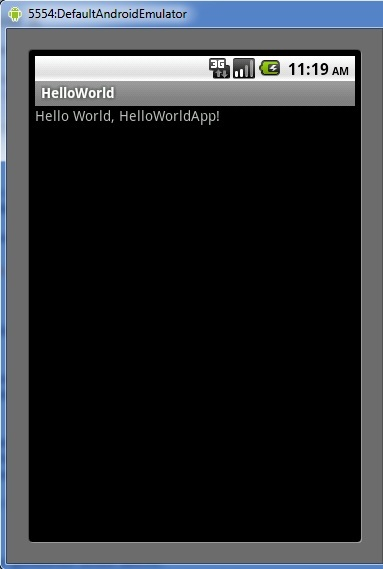
Our first Android app is done. For more than Hello World however, you’d have to explore the documentation. Any previous experience in programming will be extremely helpful, and if you run into trouble, there are forums that can help you. Good luck with programming for Android.